How to Compare Two Texts and Find the Differences (Free, Online)
Short answer
To compare two texts, paste the original version and the changed version side by side into a diff checker and let it mark what was added and what was removed. Use line mode for code, lists and config files, and word mode for essays, emails and contracts. Our free Text Diff Checker does this in your browser, with options to ignore capital letters and extra spaces.
Someone sends back "the final version" of a document and says they only changed a few words. Which words? Reading both copies line by line is slow, and the human eye is very good at skipping over the exact thing you are looking for: a changed date, a missing "not", a number with one digit different. A diff tool solves that in seconds. It lines up the two versions and shows only what is different, so you can check every change instead of hoping you noticed them all.
The word "diff" comes from the classic Unix diff program, which programmers have used for decades to compare files. The same idea now powers the "track changes" view in version control systems like Git, the revision history of online documents, and simple web tools like ours.
How to compare two texts in four steps
- Open the Text Diff Checker. It works on phones and computers, with no sign-up.
- Paste the original on the left and the changed version on the right. The order matters: anything that exists only on the right is reported as added, and anything only on the left as removed.
- Choose how to compare: by lines or by words (more on that below), and tick "Ignore case" or "Ignore extra spaces" if those differences don't matter to you.
- Press Compare. You get a quick verdict (texts match or differences found), a count of added and removed pieces, and the full text with every change highlighted.
The comparison runs in your browser, so the text you paste is not uploaded to our server. That is handy when you are checking a contract, a cover letter or anything else you would rather keep private.
Line mode or word mode?
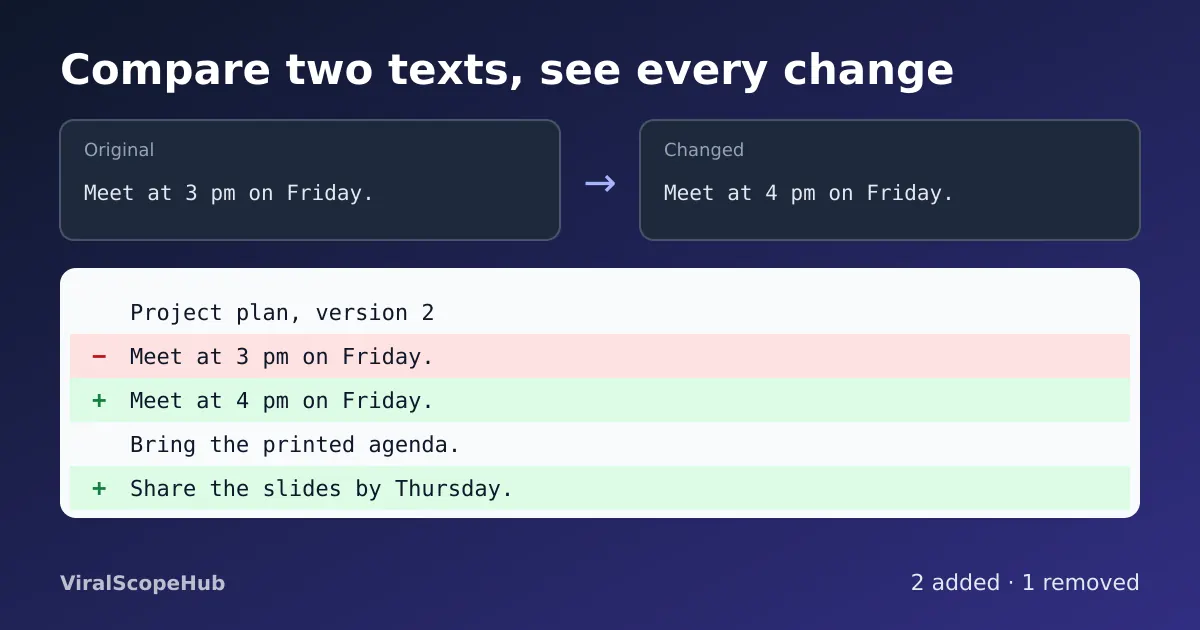
Line mode treats each line as one unit. If anything on a line changes, even one comma, the old line is shown as removed (red, with a minus sign) and the new line as added (green, with a plus sign). This is how developers read code changes, and it is the best choice for code, CSV rows, lists of names, settings files and song lyrics, where each line has its own meaning.
Word mode shows the whole text as one flowing passage, with new words highlighted in green and deleted words struck through in red. For normal writing such as essays, emails, articles and contracts, this is much easier to read, because one small edit inside a long paragraph doesn't turn the whole paragraph red.
A quick rule: if pressing Enter in the text means something (a new row, a new item, a new instruction), use lines. If the text is made of sentences, use words.
When to ignore case and spaces
Not every difference is a real change. Someone may have fixed capital letters in headings, or a copy from a PDF may contain double spaces and odd line breaks. Two options help you cut that noise:
- Ignore case treats "Friday" and "friday" as the same. Turn it on when you only care about wording, and leave it off for passwords, code and names, where capitals matter.
- Ignore extra spaces treats runs of spaces and tabs as a single space and ignores spaces at the start and end. It is useful for text copied from PDFs, websites and spreadsheets. Leave it off for code in languages like Python, where indentation changes the meaning.
If you only want to tidy a list before comparing it, our duplicate line remover and case converter can clean it up first.
How to read the result
Here is a tiny example. The original says "Meet at 3 pm on Friday. Bring the printed agenda." The new version says "Meet at 4 pm on Friday. Bring the printed agenda. Share the slides by Thursday." In word mode you would see "3" struck through, "4" highlighted next to it, and the whole last sentence highlighted as new. The agenda sentence stays plain because nothing changed.
Behind the scenes, a diff tool looks for the longest run of text the two versions share in the same order, then marks everything outside that shared part as added or removed. That is why a moved paragraph shows up as removed in one place and added in another: the tool sees a deletion and an insertion, not a "move". Keep that in mind when a result looks bigger than you expected.
Everyday uses
- Contracts and offers: check what really changed between the version you agreed to and the one sent for signing.
- School work: compare your draft with your teacher's corrected copy and learn from every edit.
- Translations and subtitles: find lines that were skipped or changed between two files.
- Code and settings: spot the single changed value in a configuration file. For data files, run them through the JSON formatter first so both versions use the same layout.
- Website copy: confirm that an update only touched the paragraph it was supposed to.
Tips for a clean comparison
Paste plain text rather than formatted text where you can, because hidden formatting can sneak in odd characters. Compare like with like: if one version has line breaks every few words (as text from a PDF often does) and the other doesn't, line mode will report nearly everything as changed, so switch to word mode. Very large documents can be slow to compare in a browser, so if you have a long book or log file, compare it a section or chapter at a time. And once you are done, the word counter is a quick way to check that the final version still fits your word limit.
VSH take: Most people only reach for a diff tool after something goes wrong, like a missed change in a lease or a broken setting. We think it is worth making it a habit for anything you sign, submit or publish. It takes ten seconds, and it turns "I think they only fixed typos" into "I know exactly what changed". That small check has saved plenty of people from an unpleasant surprise.
ViralScopeHub is independent and not affiliated with GNU, Git or any software maker mentioned here.
Frequently asked questions
How do I compare two texts for differences?
Paste the original text on the left and the changed text on the right of a diff checker such as our free Text Diff Checker, choose line or word mode, and press Compare. Added text is shown in green and removed text in red.
Should I compare by lines or by words?
Use lines for code, lists, CSV rows and settings files, where each line is its own item. Use words for essays, emails and contracts, so one small edit doesn't mark a whole paragraph as changed.
What does "ignore extra spaces" do?
It treats several spaces or tabs in a row as one space and ignores spaces at the start and end, so text copied from PDFs or websites doesn't show false changes. Leave it off for code where indentation matters.
Why does a moved paragraph show as removed and added?
Diff tools match the longest shared text in order. A paragraph that moved is seen as deleted in its old place and inserted in its new place, not as a move.
Is my text uploaded when I use the Text Diff Checker?
No. The comparison runs in your browser, so the text you paste stays on your device.
Is there a size limit?
Very large texts can be too heavy to compare in a browser. If the tool asks you to, compare a smaller section, such as one chapter at a time.