How to Make a Favicon for Your Website (Sizes, Files and Code)
Short answer
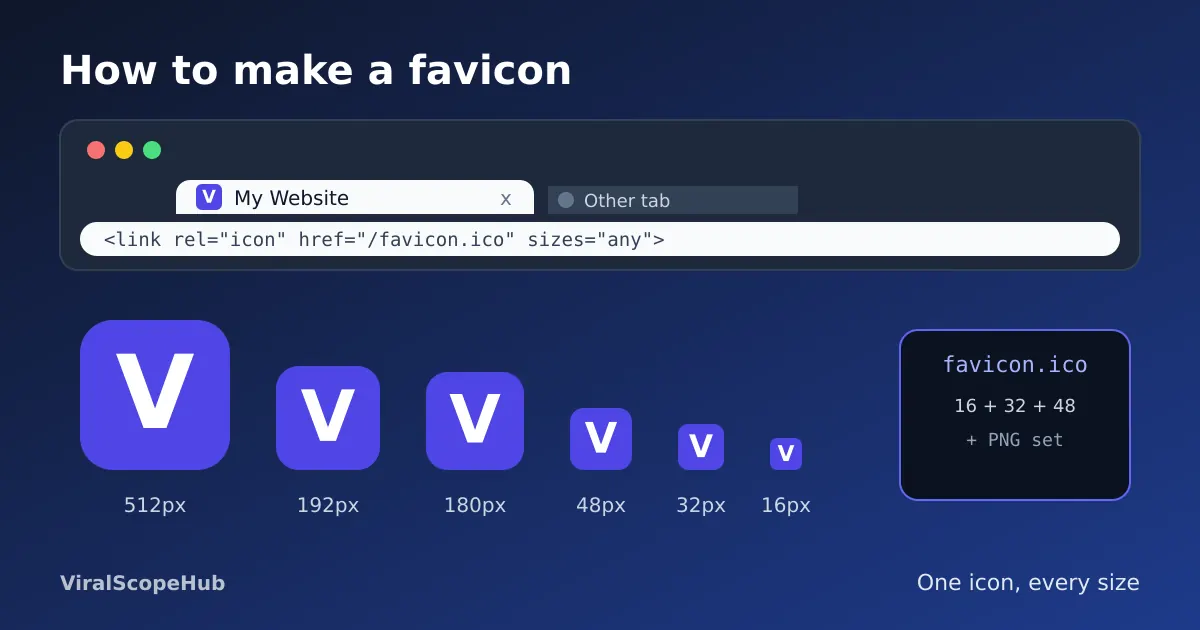
A favicon is the tiny square icon that appears in browser tabs, bookmarks, phone home screens and next to your site in Google results. Most sites need a favicon.ico, a 32×32 and 16×16 PNG, a 180×180 Apple touch icon and 192 and 512 pixel icons for Android, plus a few lines of HTML in the page head. You can make the whole set free in a minute with our Favicon Generator, from a letter, an emoji or your own logo.
Open a few tabs and look at the top of your browser. Every well-made site has a small picture there: a letter, a logo, a symbol. That picture is the favicon, short for "favourite icon", a name left over from the days when it mainly showed up in the Favourites menu of old browsers. Today it does a lot more work. It is how people find your tab among twenty others, it sits beside your page title in Google's mobile results, and it becomes the app-style icon when someone saves your site to their phone's home screen.
A missing favicon is not a disaster, but it makes a site look unfinished. Browsers show a plain grey globe or a blank page symbol instead, and that small gap quietly says "nobody looked after this". The good news is that fixing it takes a few minutes and costs nothing.
Which sizes you actually need
You will find guides listing twenty different icon files. For almost every site, six are enough:
- favicon.ico with 16, 32 and 48 pixel images inside. This old format is still the safest fallback, and many browsers and tools look for it at the root of your site automatically.
- favicon-32x32.png and favicon-16x16.png for modern browser tabs, including sharp screens.
- apple-touch-icon.png at 180×180, used when an iPhone or iPad user adds your site to the home screen.
- android-chrome-192x192.png and android-chrome-512x512.png, used by Android and by the web app manifest when someone installs your site.
Google's search guidelines ask for a square icon and recommend something larger than 48×48 pixels, so having the bigger PNGs also helps your icon look crisp in search results.
ICO, PNG or SVG?
An ICO file is a container that can hold several sizes at once, which is why it is still useful as a catch-all. PNG files are simple, widely supported and the normal choice for each specific size. SVG favicons are vector files that stay sharp at any size and are supported by most modern desktop browsers, but not everywhere, so treat an SVG as a nice extra rather than your only icon. If your logo starts as a JPG, convert it to PNG first with our JPG to PNG converter so you can keep a transparent background. Not sure about formats in general? Our guide to PNG vs JPG vs WebP explains the differences.
How to make a favicon free, step by step
- Pick the source. Open the Favicon Generator and choose text or image. Text works for a single letter, two initials or an emoji. Image works for an existing logo.
- Choose a shape and colours. Pick square, rounded or circle, a background colour and a text colour, or tick "Transparent background" so the icon floats on light and dark tabs alike.
- Check the previews. The tool draws every size live. Look hard at the 16 pixel version: if you cannot read it, simplify. For an uploaded logo, "Fill the whole icon" crops it to a square so there is no wasted space.
- Download the files. Use "Download favicon.ico" for the ICO, then "Download all PNG sizes" for the PNG set.
- Copy the HTML. The tool gives you a ready snippet for your page head.
Everything runs in your browser. Your logo is not uploaded to a server, which is handy for client work or unreleased brands.
The HTML to add
Upload the files to the root folder of your site, the same place your home page lives, then put these lines inside the <head> of every page (or your site template):
<link rel="icon" href="/favicon.ico" sizes="any">
<link rel="icon" type="image/png" sizes="32x32" href="/favicon-32x32.png">
<link rel="icon" type="image/png" sizes="16x16" href="/favicon-16x16.png">
<link rel="apple-touch-icon" sizes="180x180" href="/apple-touch-icon.png">
<link rel="manifest" href="/site.webmanifest">
The last line points to a small text file called a web app manifest. If you don't have one yet, create site.webmanifest in the same folder with your site name and the two Android icons listed under icons, each with its src, sizes (192x192 and 512x512) and type of image/png. If you skip the manifest, simply leave that last link line out.
Design tips that make a small icon work
- One idea only. A full logo with a name rarely survives at 16 pixels. Use the symbol, the first letter or two initials.
- High contrast. White on a strong colour, or a dark mark on a light one. Pale grey on white disappears in a tab.
- Fill the space. Leave only a thin margin. Tiny details in a big empty square look like a dot.
- Test in dark mode. Many people browse with dark tabs. A transparent icon with a black logo can vanish there, so a coloured background is often safer.
- Keep it consistent. Use the same colours as your site and social profiles so people recognise you everywhere.
Why your new favicon isn't showing
This is the most common question, and the answer is nearly always caching. Browsers hold on to favicons for a long time. Try a hard refresh, open the site in a private window, or add a version to the file name in your HTML, such as /favicon-32x32.png?v=2. Also check that the file paths in your HTML match where you actually uploaded the files, and that your robots.txt does not block them, since Google needs to crawl the icon. In search results, Google updates favicons on its own schedule, so a change there can take days or a few weeks to appear.
Our take
People tend to treat the favicon as a last-minute chore, and big brands treat it as part of their identity. The truth sits in between: you don't need a designer, but you should spend five minutes making sure your icon is readable at 16 pixels and looks good in a dark tab. That small effort makes a site feel trustworthy, and it is one of the cheapest wins in web design. Once your icon is done, it's a good moment to check your page speed too: our guide on reducing image size without losing quality and the image resizer and compressor help keep pages fast.
ViralScopeHub is independent and not affiliated with Google, Apple, Microsoft or any browser maker mentioned here.
Frequently asked questions
What size should a favicon be?
Make a set: 16×16 and 32×32 PNGs plus a favicon.ico for browser tabs, 180×180 for the Apple touch icon, and 192×192 and 512×512 for Android and web app installs. Google recommends a square icon larger than 48×48 pixels for search results.
Do I still need a favicon.ico file?
It is still a good idea. The ICO format can hold several sizes in one file and works as a reliable fallback for older browsers and tools that look for /favicon.ico automatically.
Can I use an emoji as a favicon?
Yes. In our Favicon Generator choose text, type or paste an emoji, and download the PNG and ICO files. Emoji look slightly different on each device, so check the preview.
Where do I put the favicon files?
Upload them to the root folder of your website and add the link tags to the head section of every page or your site template.
Why is my old favicon still showing?
Browsers cache favicons for a long time. Hard refresh, test in a private window, or add a version like ?v=2 to the file path. Google search results can take days or weeks to update.
Is the ViralScopeHub Favicon Generator free?
Yes. It is free, needs no sign-up and builds the icons in your browser, so your logo is not uploaded anywhere.