How to Make an Electronic Signature Free (Draw or Type, Transparent PNG)
Short answer
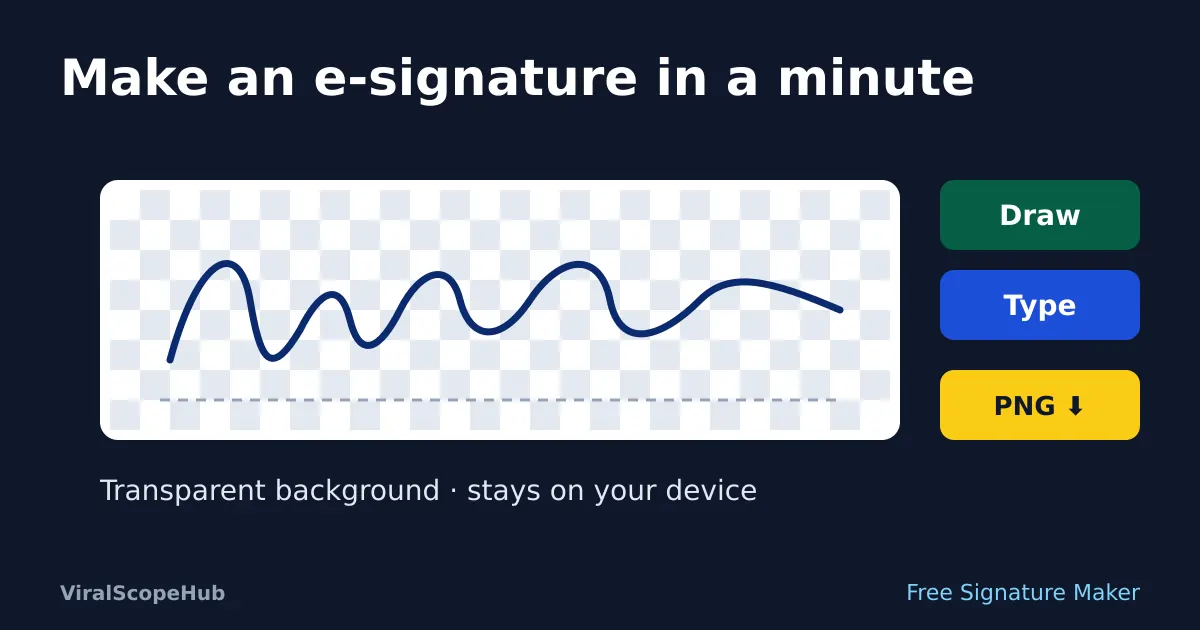
To make an electronic signature, draw your signature with a finger, stylus or mouse (or type your name in a handwriting-style font), then save it as a PNG image with a transparent background. You can then place that image on a PDF, a Word document or an online form. Our free Signature Maker does this in your browser, trims the empty space around your signature automatically, and never uploads it. For contracts, banking and government forms, check whether the organisation needs its own e-signing service or a certificate-based digital signature instead of a simple image.
A landlord emails a lease, a school sends a permission slip, or a new job wants a signed form back by tonight. You do not have a printer, and printing, signing, scanning and emailing a page feels like a lot of work for one line of ink. An electronic signature solves that. In this guide you will make one for free in a couple of minutes, learn how to keep it looking sharp on any document, and find out when a simple signature image is fine and when you need something stronger.
The quick way: make a signature in your browser
- Open the Signature Maker. It works on phones, tablets and computers.
- Leave the mode on Draw and sign inside the pad with your finger, a stylus or your mouse. If you do not like it, press Clear and try again. Most people need two or three attempts.
- Prefer typing? Switch the mode to Type, enter your name, and pick a style: Script, Elegant italic, Casual, or Hindi / Punjabi for names written in Devanagari or Gurmukhi.
- Choose an Ink colour (dark blue is the default, and black works well too) and adjust the Pen size from 1 to 8 so the line looks like a real pen stroke.
- Press Download PNG. You get a file called
signature.png, cropped tightly around your signature with a little padding.
By default the background is transparent, which means only the ink is saved. Tick White background instead of transparent if the app you are pasting into does not handle transparency well. Everything happens on your device: the drawing is made on a canvas inside the page, and the file is created by your own browser.
Why a transparent PNG works best
A photo of your signature on paper usually brings along a grey or yellowish rectangle, shadows from your hand and a slightly crooked angle. When you drop that onto a clean white PDF, it looks pasted on. A transparent PNG stores only the strokes, so the signature sits naturally on top of a signature line, a coloured form or even a scanned page. PNG is also lossless, so the edges stay crisp instead of picking up the blocky smudges that JPG compression adds around thin dark lines.
Already have a signature on paper that you like? Sign a plain white sheet with a dark pen, take a straight, well-lit photo, and use the background remover to cut the paper away. Then crop it closely. A drawn signature from the pad is usually cleaner, but a photo keeps the exact look of your handwriting.
How to add your signature to a PDF or document
Once you have signature.png, the steps depend on the app you use:
- PDF on a Mac: Apple's Preview app can add signatures through its Markup toolbar. You can sign on the trackpad, hold a paper signature up to the camera, or use your iPhone or iPad. You can also paste your PNG onto the page.
- PDF on Windows or Android: many free PDF readers have a "Fill and sign" or "Add image" option. Insert the PNG, drag it onto the signature line, and resize it from a corner so it keeps its shape.
- Word, Google Docs or similar: insert the PNG as a picture, set text wrapping to "in front of text" so you can move it freely, and place it on the line. Then export or download the document as a PDF.
- Online forms: if a form asks you to upload a signature image, use the PNG directly. Some government and exam portals set strict size limits in kilobytes and pixels, so read the instructions first. Our guide to converting JPG to PDF and our exam guides cover common upload rules.
If you have to return a paper form with a signature on it, you can also print just that page, sign it by hand, and turn the photos back into a PDF with the photo to PDF scanner. Got several photos or images to combine into one file? The image to PDF converter puts them in order on clean pages, and you can join PDFs with our PDF merging guide.
Tips for a signature that looks real
- Use a bigger surface. Signing with a mouse is hard. A phone held sideways, a tablet with a stylus, or a laptop trackpad usually gives a smoother line.
- Sign at a normal speed. Slow, careful signing makes shaky lines. A quick, confident stroke looks more natural.
- Match the pen size to the document. A thin line (2 or 3) suits most forms. Very thick strokes look like a marker when the image is shrunk.
- Do not stretch it. Always resize from a corner, not a side, or the signature will look squashed.
- Keep it consistent. Banks and offices sometimes compare signatures, so aim for the same signature you use on paper.
Is an electronic signature legally valid?
In many countries, yes, for a wide range of everyday documents, but the rules vary and there are exceptions. Here is the general picture, which is not legal advice:
- United States: the federal Electronic Signatures in Global and National Commerce Act (ESIGN), passed in 2000, says a signature or contract cannot be denied legal effect just because it is in electronic form. Some documents, such as wills and certain court and family law papers, are excluded.
- Canada: federal and provincial laws recognise electronic signatures for many purposes. Part 2 of the federal Personal Information Protection and Electronic Documents Act (PIPEDA) deals with electronic documents and signatures for federal matters, and some uses require a "secure electronic signature".
- European Union: the eIDAS regulation recognises electronic signatures and defines stronger, certificate-based types, called advanced and qualified electronic signatures, for situations that need more trust.
- India: the Information Technology Act, 2000 recognises electronic signatures, including Aadhaar-based eSign services, while some documents, such as wills and property sale contracts, still need traditional formalities.
The key difference is between a signature image and a digital signature. A PNG of your signature shows that you agreed, and it is fine for permission slips, delivery notes, internal forms and many simple agreements. A certificate-based digital signature also proves who signed and shows whether the file was changed afterwards. Banks, tax portals, company filings and many government services require their own system, so if a form says "digitally sign" or names a specific service, follow that instruction rather than pasting an image.
Keep your signature safe
Your signature image is personal. Treat it like a key:
- Do not post it on social media or leave it in shared folders.
- Only add it to documents you have read and agree with.
- Send signed documents as PDFs rather than editable files where possible, and keep a copy of what you signed.
- Be careful with websites that ask you to upload a signature to "verify" an account. Real organisations normally use their own secure signing process.
Because our Signature Maker never uploads your drawing, there is no copy of your signature on a server. When you are done, simply close the page.
VSH take: For everyday paperwork, a clean transparent PNG of your own signature saves a trip to the printer and looks far more professional than a photo of a napkin. Make it once, store it somewhere private, and reuse it. For anything involving money, property or government IDs, use the signing method the organisation asks for. Students filling in application forms can find help on our study pages and exam guides, and if your signed form is for a trip, compare fares on the flights hub.
ViralScopeHub is independent and not affiliated with Apple, Adobe, Microsoft, Google or any government or e-signing service mentioned here. This guide is general information, not legal advice. Laws and app menus change, so check the current rules for your country and document.
Frequently asked questions
How do I make an electronic signature for free?
Open a free signature maker, draw your signature with a finger, stylus or mouse, or type your name in a handwriting-style font, then download it as a PNG. Our Signature Maker does this in your browser without uploading anything.
How do I get a transparent background on my signature?
Save it as a PNG with a transparent background. Our Signature Maker does this by default. For a signature photographed on paper, use a background remover to cut away the paper, then crop it.
Is a signature image the same as a digital signature?
No. A signature image shows you agreed, while a certificate-based digital signature also verifies who signed and whether the document was changed. Banks and government services often require the second type.
Can I make a signature in Hindi or Punjabi?
Yes. In Type mode, choose the Hindi / Punjabi style and type your name in Devanagari or Gurmukhi. You can also simply draw it in any script.
Is it safe to make a signature online?
It is safe when the tool works on your device. Our Signature Maker never uploads your drawing. Still, keep the PNG private and only add it to documents you have read.