How to Scan a QR Code From a Screenshot or Image (Phone or Computer)
Short answer
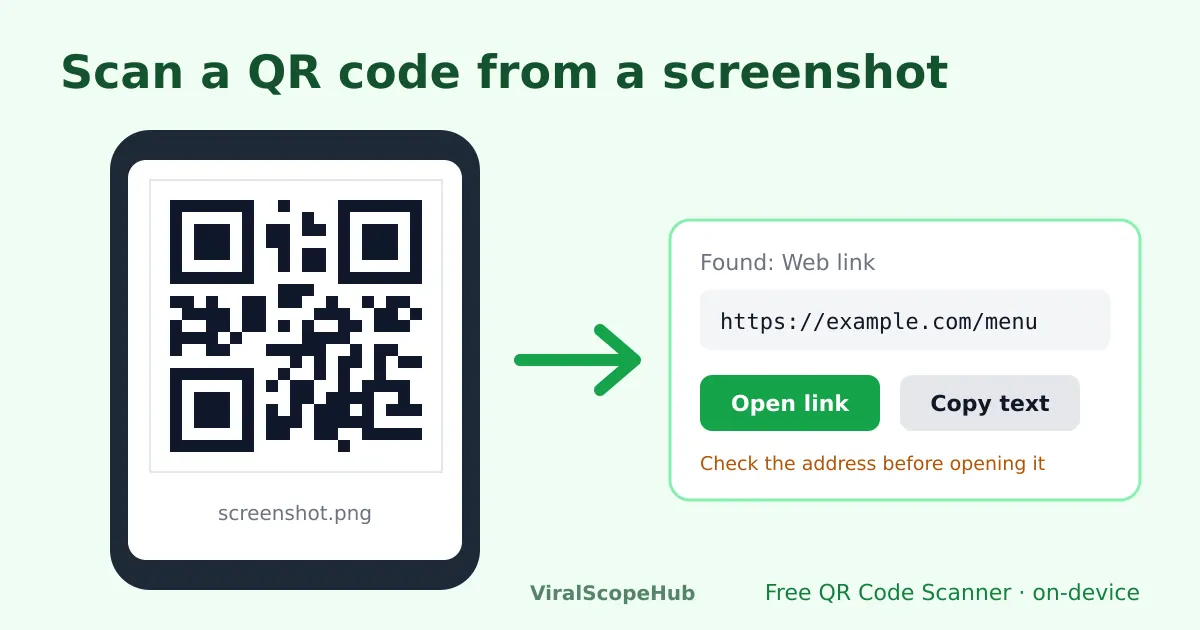
To scan a QR code from a screenshot or image, open the picture in a QR reader that accepts image files instead of the camera. On a computer, take a screenshot of the code, save it, and drop it into our free QR Code Scanner; on a phone, use the same page or your phone's own photo search feature. If the code will not read, crop it so the whole square plus a little white border is visible, and use the sharpest copy you have. Our scanner decodes the image inside your browser, so the picture is never uploaded.
QR codes were built for cameras, but more and more of them reach us as pictures: a Wi-Fi code in a group chat, a ticket in an email, a payment code in a PDF invoice, a link on a slide in a video call. The obvious trick, pointing a second phone at your screen, works, but you do not need it. Any reader that accepts an image file can decode the code directly, and it usually does a better job than a camera aimed at a glowing screen.
On a computer (Windows, Mac, Chromebook)
- Get the code into an image file. If it is already a picture, save it. If it is on a web page, in a PDF or in a video call, take a screenshot: Windows + Shift + S on Windows, Cmd + Shift + 4 on a Mac, or the screenshot key on a Chromebook. Save the screenshot as a PNG or JPG.
- Open the QR Code Scanner and choose or drop the image onto the "scan a photo or screenshot" box.
- Read the result. The decoded content appears in a box with a Copy button. Web links get an Open button, email addresses and phone numbers get a button to start them, and Wi-Fi codes show the network name, password and security type.
Capture just the code rather than the whole screen when you can. A tight screenshot gives the decoder more pixels to work with and avoids confusion if the page shows more than one code.
On a phone
For codes you see in the real world, the built-in camera is the fastest option. Apple's iPhone User Guide explains scanning with the Camera app or the Code Scanner in Control Center, and most Android cameras or Google Lens do the same. For a code that is already on your phone, as a screenshot or saved photo, you have two choices:
- Your phone's photo tools. Recent iPhones and Android phones can often recognise a QR code inside a photo in the gallery, usually through a visual look-up or Lens button. Results depend on the phone and software version.
- A browser scanner. Open our QR Code Scanner, tap the photo box and pick the screenshot from your gallery. Nothing to install, and it works the same on every phone.
What kind of content is inside?
A QR code is just a container for text. What happens next depends on how that text starts, so a good reader tells you what it found before doing anything:
| Starts with | What it is | What our scanner offers |
|---|---|---|
https:// or http:// | Web link | Open (in a new tab) and Copy, plus a reminder to check the address |
WIFI: | Wi-Fi network | Network name, password and security type, ready to copy |
mailto: / tel: / SMSTO: | Email, phone call or text | A button to start the email or call; Copy |
BEGIN:VCARD | Contact card | The card text, ready to copy |
BEGIN:VEVENT | Calendar event | The event text, ready to copy |
geo: | Map location | The coordinates, ready to copy |
| Anything else | Plain text | The text, ready to copy |
Your last ten scans are listed on the page for the current session, which is handy when you are working through a stack of codes.
Why a QR code will not scan, and how to fix it
- The border is cropped off. QR codes need a clear margin, called the quiet zone. DENSO WAVE, the company that invented the QR code, specifies a margin four modules wide on every side (a module is one of the small squares). Screenshots cropped tight to the black edge often fail. Leave some white around the code, or add it back with the image cropper.
- The image is too small or blurry. Each module needs to be several pixels across. Zoom in before you screenshot, or use the original image instead of a forwarded copy that a chat app has compressed.
- Part of the code is hidden. QR codes carry built-in error correction, so a smudge or a small logo in the middle is fine. DENSO WAVE lists four levels that can restore roughly 7%, 15%, 25% or 30% of the data. A code cut in half is beyond any of them.
- It is a photo of a screen. Photographing a monitor creates stripy moiré patterns that confuse decoders. A real screenshot is always cleaner.
- The colours are reversed. Light codes on dark backgrounds trip up some readers. Our scanner tries both the normal and the inverted version.
- It is not a QR code. Product barcodes (the striped kind) and other 2D codes such as Data Matrix or Aztec need a different reader. Our scanner is built for QR codes only.
- There are several codes in one image. Crop to the one you want, so you know which result you are reading.
Stay safe with codes you did not expect
A QR code hides its destination until you scan it, which scammers have noticed. The US Federal Trade Commission warns that criminals stick their own codes over real ones, for example on parking meters, and send codes by email or text with an urgent story about a parcel or a locked account. Its advice is simple: look at the address before opening it, watch for misspellings and swapped letters, do not scan unexpected codes that pressure you to act fast, and contact the company through a website or phone number you already know.
A reader that shows you the decoded text first, rather than opening it automatically, makes that check easy. Two more habits help: treat a Wi-Fi code as a password (because it contains one), and before paying through a QR code, check that the name of the person or business you are paying is the one you expect.
Privacy: where does the image go?
Many online QR readers upload your picture to a server to decode it. That is a poor fit for codes holding Wi-Fi passwords, tickets or payment details. Our scanner decodes in your browser, using the browser's built-in barcode detector where one is available and the open-source jsQR library otherwise. Camera frames and images stay on your device. If you need to make a code rather than read one, the QR Code Generator works the same way, and our guide to making a QR code covers sizes and printing.
VSH take: Screenshot, crop with a little white border, drop it in: that covers almost every case, and it is quicker than hunting for a second phone. The scanning is the easy part; pausing for two seconds to read the link before you tap it is the bit that actually protects you. Students who share codes for class links can find more help on our study pages, the free games are there for a break, and if a boarding-pass code brought you here, our flights hub can help you plan the next trip.
ViralScopeHub is independent and not affiliated with DENSO WAVE, Apple, Google, the Federal Trade Commission or any app mentioned here. QR Code is a registered trademark of DENSO WAVE INCORPORATED. Feature names on phones vary by model and software version. We are not responsible for the content of codes you scan or the sites they lead to.
Frequently asked questions
Can I scan a QR code from a screenshot on the same phone?
Yes. Open a QR reader that accepts images, such as our free QR Code Scanner, and pick the screenshot from your gallery. Many phones can also recognise codes in photos through their gallery's visual look-up or Lens feature.
How do I scan a QR code on my laptop screen?
Take a screenshot of the code, save it, and drop the file into our QR Code Scanner. You do not need a second device or a webcam.
Why will my QR code not scan from an image?
The usual causes are a cropped white border (quiet zone), a blurry or tiny image, a code that is partly cut off, or a photo of a screen. Use a clean screenshot with some white space around the whole code.
Is it safe to scan a QR code from an image?
Decoding is safe; opening the result is the risky part. Check the web address for misspellings before opening it, and be wary of unexpected codes that urge you to act quickly, as the FTC advises.
Is my image uploaded when I scan it?
Not with our scanner. The image is decoded in your browser and never leaves your device.