How to Extract Text From an Image Free (Photo, Screenshot or Scan)
Short answer
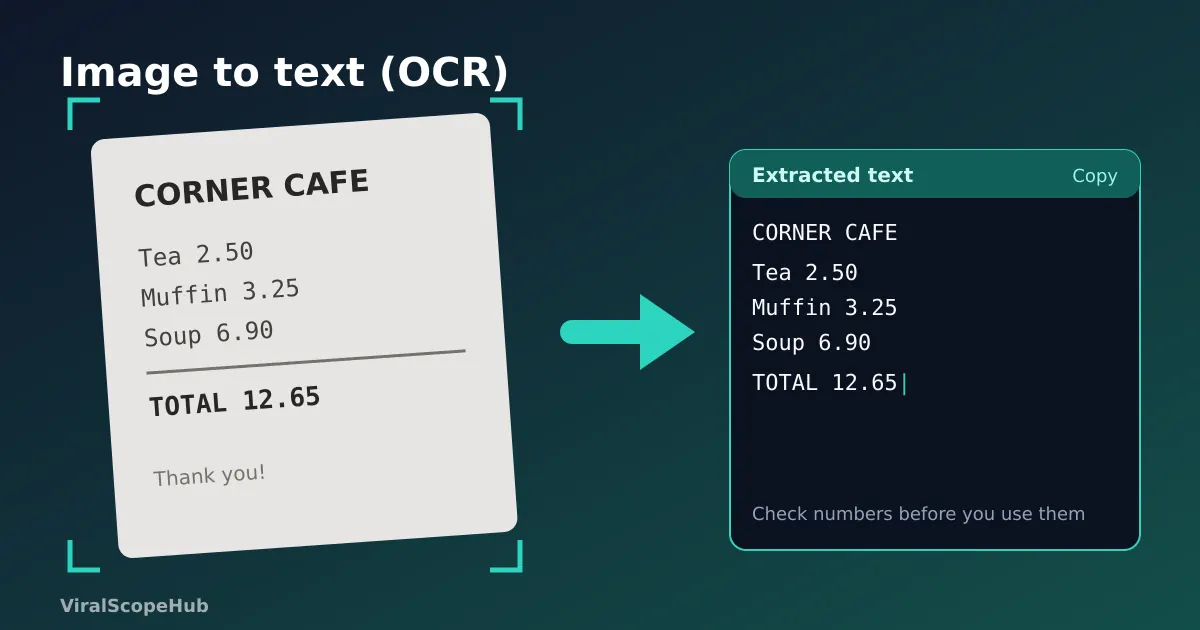
To extract text from an image, open our free Image to Text (OCR) tool, pick the language, and choose the photo, screenshot or scan. The text appears in a box a few seconds later, ready to copy or download as a .txt file. It runs on your own device, so the image is never uploaded. For the best accuracy, use a sharp, straight, well-lit picture and always double-check names and numbers.
Retyping text from a picture is slow and error-prone: a receipt for an expense claim, a recipe from a cookbook, a slide someone shared as a screenshot, a page of notes for an assignment. Optical character recognition, usually shortened to OCR, does the typing for you. It looks at the shapes in an image, works out which letters they are, and gives you real text you can edit, search and paste anywhere.
How to copy text from a picture in four steps
- Open the Image to Text (OCR) page on your phone or computer.
- Choose the text language. English is selected by default. There are models for Hindi, Punjabi (Gurmukhi), French, Spanish, German, Portuguese, Arabic, Urdu, Bengali and Simplified and Traditional Chinese, plus an Auto option for pages that mix English, Hindi and Punjabi.
- Choose or drop your image: a JPG or PNG photo, a screenshot or a scan. Recognition starts straight away, with a progress bar.
- When it finishes, check the text, then tap Copy or Download .txt.
The first time you use a language, its model downloads once (roughly 1 to 3 MB, plus an engine of about 4 MB) and is then cached by your browser, so later runs start faster. Under the hood the tool uses Tesseract, a well-known open-source OCR engine, running inside your browser. Nothing is sent to a server, which is the safer choice for things like bank letters, payslips or ID documents.
What the two checkboxes do
- Enhance contrast turns the picture into high-contrast greyscale before reading it. It helps a lot with phone photos taken under yellow kitchen lights or with grey paper. For clean screenshots it usually makes little difference.
- Join lines into paragraphs removes the line breaks that come from narrow columns, and rejoins words split with a hyphen at the end of a line. Turn it on for book pages and articles. Leave it off for lists, receipts and addresses, where every line matters.
Under the result you will also see a word count and an average confidence score. A low score is a hint to retake the picture rather than proofread a messy result line by line.
Tips for accurate results
OCR software is very good with clean, printed text and much weaker with everything else. The developers of Tesseract say it works best on images of at least 300 DPI and that accuracy drops sharply if a page is skewed. Google's own help page for converting images in Drive gives similar advice: text at least 10 pixels high, right-side up, with sharp, evenly lit images and common fonts. In everyday terms:
- Fill the frame. Get close enough that the text covers most of the photo. Crop away the table, your hand and the background with the image cropper.
- Keep it straight and flat. Hold the phone parallel to the page. Curled book pages and creased receipts confuse the line detection.
- Use even light. Daylight from a window beats a ceiling lamp that throws your phone's shadow across the page. Avoid flash on glossy paper.
- Prefer screenshots to photos of screens. A photo of a monitor adds glare and moiré patterns. A real screenshot reads almost perfectly.
- Pick the right language. An English model will not read Hindi or Punjabi script, and the reverse is true too.
For multi-page paper documents, it is often worth scanning them properly first. Our Photo to PDF Scanner straightens and cleans up phone photos, and our guide to scanning documents with your phone covers lighting and angles in more detail. If you already have a PDF, convert its pages to images first with our guide to turning a PDF into JPGs.
What OCR can and can't read
| Type of image | What to expect |
|---|---|
| Screenshot of a web page, app or slide | Excellent, usually near-perfect |
| Flat scan of a printed letter or book page | Very good |
| Phone photo of a receipt or menu | Good if sharp and well lit; check prices |
| Text on a sign, T-shirt or packaging | Mixed: curved surfaces and fancy fonts cause errors |
| Tables and multi-column layouts | The words come out, but the layout usually doesn't |
| Handwriting | Poor except very neat block capitals; Tesseract is built for print |
Always proofread the result
Even a clean result can hide small but important mistakes. The usual suspects are the number 0 and the letter O, 1 and l, 5 and S, rn read as m, and missing decimal points. Those are exactly the characters that matter in prices, account numbers and dates, so compare them with the original before you paste them into a form or a spreadsheet. A quick pass through the grammar checker catches many letter-swaps in ordinary text, and the word counter is handy if you are trimming quoted text to a limit.
Other free ways to grab text from images
Most phones now have something built in. On iPhone, Live Text lets you press and hold on text in a photo or in the camera view and copy it. On Android, Google Lens has a Text option that does the same. On a computer, Google Drive can convert a PDF or image to text by right-clicking the file and choosing Open with Google Docs; Google says images should be 2 MB or smaller for this. These options are quick for a sentence or two, but they work through each company's own services and accounts. A browser-based tool like ours is handy when you want to keep the file on your device, need a .txt file, or are working on a shared computer.
VSH take: OCR is one of those small tools that pays back every week. Snap receipts as you go and extract the totals once a month for your budget, or turn a teacher's printed handout into notes you can search. Once you have clean text, you can save it as a neat document with Text to PDF.
OCR results depend on image quality and are never guaranteed to be complete or correct. Check important details against the original. ViralScopeHub is not responsible for errors in extracted text.
Frequently asked questions
Is there a free way to extract text from an image?
Yes. Our Image to Text (OCR) tool is free with no sign-up. Choose the language, add the image, and copy the text when it appears.
Is my image uploaded to a server?
No. The OCR engine runs in your browser, so the image stays on your phone or computer.
Can OCR read handwriting?
Only very neat, printed-style handwriting, and often with mistakes. Tesseract, the engine behind our tool, is designed for printed text.
Why is my extracted text full of mistakes?
Usually the photo is blurry, tilted, too small or unevenly lit, or the wrong language is selected. Retake it straight on in good light, crop to the text and tick Enhance contrast.
Which languages are supported?
English, Hindi, Punjabi (Gurmukhi), French, Spanish, German, Portuguese, Arabic, Urdu, Bengali, and Simplified and Traditional Chinese, plus an Auto mode for mixed English, Hindi and Punjabi.