How to Compress a PDF Free (and Get It Under 1 MB or 200 KB)
Short answer
To compress a PDF for free, open our Compress PDF tool, choose the file, pick Balanced, and download the smaller copy. It runs in your browser, so the document is never uploaded. Scanned and photo-heavy PDFs usually shrink the most. If you need to get under a strict limit such as 200 KB, use Smallest file and remove pages you don't need first. The one trade-off: the compressed file is made of page images, so keep your original if you need to copy or search the text.
It almost always happens at the worst moment. A job portal, visa form or university application says "maximum file size 1 MB" and your scanned certificate is 9 MB. Or Gmail won't send it because the attachments add up to more than 25 MB. This guide shows the quickest free way to shrink a PDF, which setting to choose, and what to do when one pass isn't enough.
Why some PDFs are so big
A PDF made from a word processor is usually small, because it stores text as text: a few kilobytes per page. The heavy ones are almost always made of pictures. When you scan a document with your phone or a copier, every page is saved as a high-resolution photo. A single page from a 12-megapixel phone camera can easily be 1 to 2 MB, so a six-page scan ends up at 8 or 9 MB even though you could read it perfectly well at a fraction of that.
That is good news. Photo-heavy PDFs have a lot of room to shrink, and you can usually cut them by 70 to 90 percent with no difference you would notice on screen.
How to compress a PDF in your browser (no upload)
- Open the free Compress PDF tool on your phone or computer.
- Tap the box or drag your PDF onto it. The file name and current size appear.
- Choose a level: Balanced for most jobs, Smallest file for strict upload limits, or Best quality when small print must stay sharp.
- Tap Compress PDF. A counter shows each page being processed.
- Check the new size and the percentage saved, then tap Download compressed PDF. The copy is saved with "-compressed" added to the name, so your original stays untouched.
The tool works with two open-source libraries, Mozilla's pdf.js to read the pages and pdf-lib to build the new file. Both run on your own device. For private papers such as bank statements, ID cards or medical letters, that matters: many "free" compressors upload your file to a server first.
Which setting should you choose?
Under the hood, each page is redrawn as a JPEG image at a chosen resolution and quality, then placed in a new PDF with exactly the same page size. Here is what the three levels do:
| Level | Page detail | JPEG quality | Best for |
|---|---|---|---|
| Smallest file | Screen resolution (1x) | Low (50%) | Hard limits like 200 KB or 500 KB, viewing on a phone |
| Balanced | 1.4x | Medium (65%) | Email, most online forms, scanned certificates |
| Best quality | 2x | High (80%) | Small print, fine tables, documents someone may print |
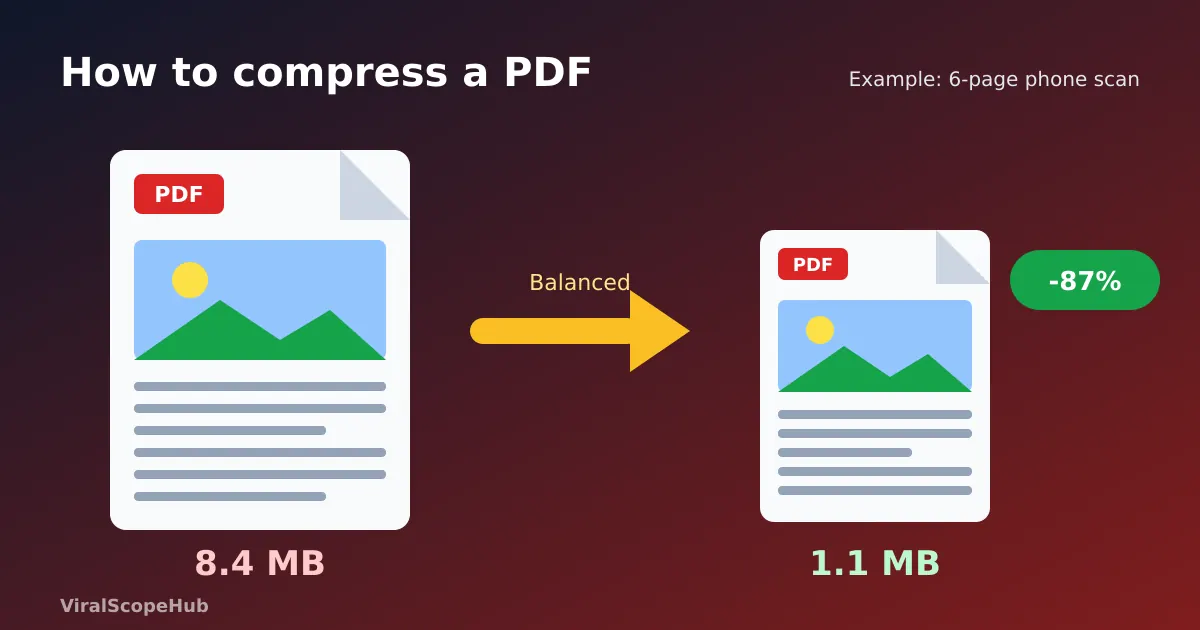
As a worked example, a six-page phone scan of 8.4 MB comes out at roughly 1.1 MB on Balanced, a saving of about 87 percent, and around 450 KB on Smallest file. Your numbers will vary with the paper, the camera and how much of each page is photo or colour, so treat these as a guide rather than a promise.
How to get a PDF under 1 MB, 500 KB or 200 KB
Upload portals for exams, government services and job applications often set exact limits. Work through these steps in order and stop as soon as you are under the limit:
- Try Balanced first. For most one- to three-page scans this already lands under 1 MB.
- Switch to Smallest file. Check that the text is still readable by zooming in on the preview in your PDF viewer.
- Remove pages you don't need. Blank backs of pages, instruction sheets and duplicate copies all add size. Use the PDF Splitter to keep only the required pages, then compress again.
- Split one large file into two uploads if the form allows several files, for example ID front and back in one, certificates in another.
- Rescan smarter. A crisp, flat, well-lit scan compresses far better than a shadowy photo. Our Photo to PDF Scanner straightens and cleans up phone photos before turning them into a PDF.
If the portal wants an image rather than a PDF, it is usually easier to resize a JPG directly. Our guide to compressing an image to 20 KB walks through that, and the image compressor lets you set a target size.
What you give up when you compress
Being honest about the trade-offs saves trouble later:
- Text stops being selectable. Because every page becomes a picture, you can no longer highlight, copy or search the words in the compressed copy. If you need that, keep the original, or turn page images back into text with our guide to extracting text from an image.
- Links and form fields are flattened. Clickable links, bookmarks and fillable boxes do not survive. Fill in and sign a form first, then compress the finished version.
- Text-only PDFs may not shrink. A report exported from Word or Google Docs is often already small. Turning it into images can make it bigger. The tool tells you when the result isn't smaller, so you can simply keep the original.
- Password-protected files can't be read until the password is removed in the program that created them.
Other free ways to compress a PDF
On a Mac, Apple's Preview app can do it without extra software: open the PDF, choose File, then Export, and pick Reduce File Size in the Quartz Filter menu. Apple notes that the result may be of lower quality than the original, so open the new file and check it before you send it.
For email, you sometimes don't need to compress at all. Gmail's limit for personal accounts is 25 MB, and if your attachments are larger it automatically swaps them for a Google Drive link. That works for sending to a person, but not for upload forms, which want the actual file.
When you're building the PDF yourself from photos, shrinking the photos first is often the cleanest route. Resize the images, then combine them with the Image to PDF converter, and join several finished files with the PDF Merger.
Common problems and quick fixes
- "The text is blurry after compressing." Go back to your original and use Best quality, or Balanced if you used Smallest file.
- "It's still too big." Remove pages, compress again on Smallest file, or rescan in black and white at a lower resolution.
- "It's slow on my phone." Very long PDFs with hundreds of pages take time on older phones. Close other tabs, or split the file and compress the parts.
- "The form rejected my file." Check whether it wants a PDF or a JPG, and whether the limit is per file or for all uploads combined.
VSH take: keep two copies of every important document, the full-quality original in a safe folder and a compressed "upload copy". You'll never have to scramble to rescan something the night before a deadline, and you never lose the version with selectable text. For the full set of steps around scanning, see our guide on scanning documents with your phone.
Sizes and savings above are examples from our own tests and will differ for your files. Always check the compressed copy is readable before you submit it. ViralScopeHub is not responsible for rejected uploads or lost documents, so keep your original.
Frequently asked questions
Is my PDF uploaded when I compress it?
No. Our Compress PDF tool reads and rebuilds the file inside your browser, so the document never leaves your phone or computer.
How do I compress a PDF to under 200 KB?
Choose Smallest file. If it is still too big, delete pages you don't need with a PDF splitter, then compress again. A clean, flat scan also helps a lot.
Will compressing a PDF reduce quality?
A little. Pages are turned into JPEG images, so very small print can lose sharpness on the strongest setting. Balanced is usually indistinguishable on screen.
Why didn't my PDF get smaller?
PDFs that mostly contain real text, such as documents exported from Word, are already compact. Compressing them as images may not help, so keep the original.
Can I compress a PDF on my phone?
Yes. The tool works in Chrome, Safari, Edge and Firefox on Android and iPhone, with no app or sign-up needed.