How to Record Your Screen Free (With Your Voice, No Watermark)
Short answer
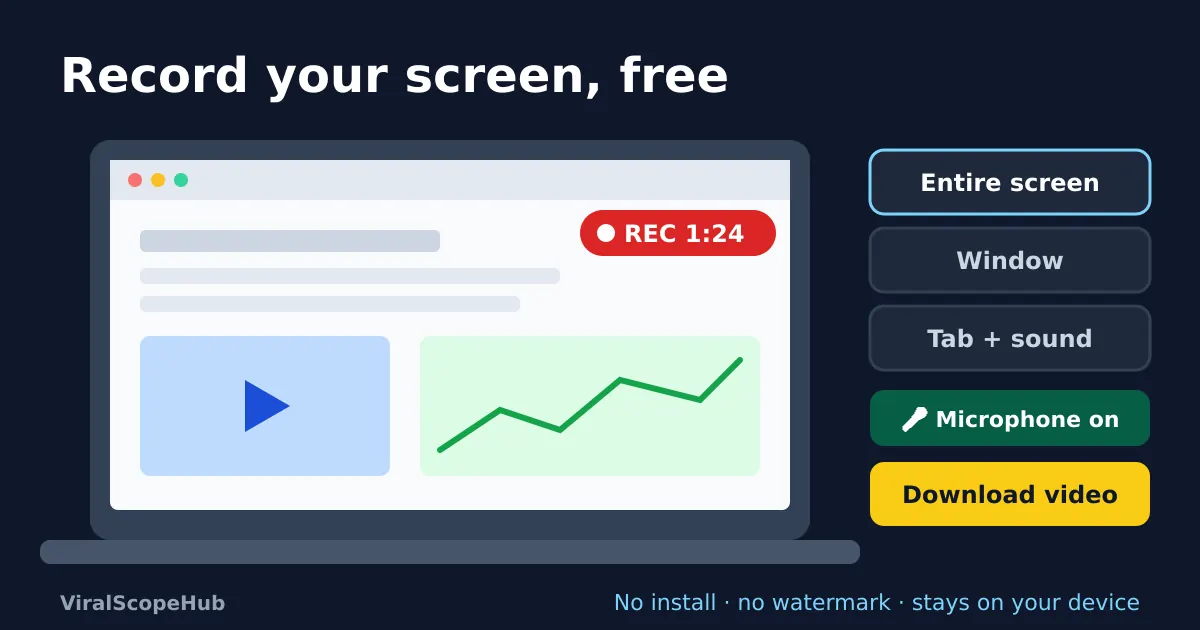
To record your screen for free, open a screen recorder, choose whether to include your microphone and the computer's sound, then pick the entire screen, one window or a single browser tab to capture. Press Stop when you are done and save the video. Our free Screen Recorder works in desktop Chrome, Edge, Firefox and Safari with nothing to install, no account and no watermark, and the video never leaves your computer. On phones, use the screen recording button that is already built into iOS and Android.
A screen recording is often the fastest way to explain something. Instead of writing ten lines about where a button is, you show it in thirty seconds. People record their screens to send a bug report to a developer, walk a parent through a new app, save an online class, make a short tutorial for YouTube, or keep proof of what a website showed on a certain day. You do not need paid software for any of that. Every modern computer and phone can do it, and a browser tool covers the gaps.
The quick way: record your screen in the browser
- Open the Screen Recorder on a computer. Tick Record my microphone if you want to talk over the video, and Include tab or system audio if the sound from a video, game or call should be in the recording.
- Choose a frame rate (15, 30 or 60 frames per second) and a quality level (Standard, High or Very high). The defaults, 30 fps and High, suit most tutorials.
- Press Start recording. Your browser now asks what to share: the entire screen, a window or a tab. Pick one and confirm. A red REC timer starts, and you can pause and resume whenever you like.
- Press Stop, or the browser's own "Stop sharing" bar. The video appears in a player so you can check it, along with its length and file size. Press Download video to save it.
The file is named with the date and time, such as screen-recording-2026-10-24-17-05-12.webm, so a batch of recordings sorts in order. (The time in the name is in UTC, so it may not match your clock.) Nothing is uploaded: the browser records into memory, and the only copy is the one you download.
Screen, window or tab: which should you share?
This choice matters more than any setting, because it decides what viewers see and which sound you can capture.
| Share | What gets recorded | Good for |
|---|---|---|
| Entire screen | Everything on that monitor, including pop-up notifications | Moving between several apps |
| Window | One app window, even if others move in front of it | Tutorials for a single program |
| Browser tab | One tab only, and its sound is easy to include | Web apps, online lessons, video calls in the browser |
If you only need a website, share the tab. It keeps your other tabs, bookmarks and messages out of the video, and in Chrome and Edge it is the most reliable way to capture sound: tick "Also share tab audio" in the sharing box. Capturing the sound of the whole computer depends on the browser and operating system, and on a Mac browsers generally cannot record system sound at all, so tab audio is the safe choice there too.
Your voice and the computer's sound together
When you tick both options, the recorder mixes your microphone and the tab or system sound into a single audio track, so a viewer hears you and the video you are explaining at the same time. Echo cancellation and noise suppression are switched on for the microphone, which helps with laptop fans and room echo. A cheap wired headset still beats any built-in laptop mic. If the browser cannot reach your microphone, for example because you blocked it earlier, the recording carries on without it and you will see a short note.
How big will the file be?
Video size depends on the bitrate, which is the amount of data recorded each second. The three quality levels in our recorder aim for about 1.5, 4 and 8 megabits per second. Divide by 8 to get megabytes and multiply by the length:
- Standard (1.5 Mbps): roughly 11 MB per minute
- High (4 Mbps): roughly 30 MB per minute
- Very high (8 Mbps): roughly 60 MB per minute
Treat these as upper limits. The browser's encoder spends fewer bits when little changes on screen, so a slide or a form often comes out much smaller than a fast game. Our guide to video file size explains the maths in detail. For a ten-minute lesson to email or upload on a slow connection, Standard at 15 or 30 fps is usually plenty.
WebM or MP4?
Chrome, Edge and Firefox save WebM, a free video format that plays in those browsers and in VLC and uploads to YouTube without trouble. Safari tends to produce MP4. If a phone, a school portal or an editing app wants MP4, run the recording through the Video Compressor: it always saves MP4 and shrinks the file at the same time. To cut a slow start or an awkward ending, use the Video Trimmer, and our guide on how to trim a video explains the fast and exact modes.
Built-in screen recorders on every device
- Windows 11: the Snipping Tool has a Record mode for any part of the screen. Older versions of Windows have the Xbox Game Bar (Windows key + G), which records one app or game at a time rather than the desktop.
- Mac: press Shift + Command + 5 to open the Screenshot toolbar, then choose to record the entire screen or a selected portion. Apple's guide also explains how to add your microphone from the Options menu.
- Chromebook: open Quick Settings and choose Screen capture, then switch to video. The same tool can include your microphone.
- iPhone and iPad: add Screen Recording to Control Center, tap it and wait for the three-second countdown. Long-press the button first if you want to turn on the microphone.
- Android: swipe down twice and tap Screen record in Quick Settings (on Android 11 and later; names vary a little by phone maker). You can choose to record sound and to show your taps.
Phones are the one place where a browser recorder will not help, because mobile browsers do not allow web pages to capture the screen. That is a privacy rule, not a bug, so use the built-in button.
Tips for a recording people will actually watch
- Clean up first. Close private tabs, hide bookmarks and turn on Do Not Disturb so a message preview does not pop up halfway through.
- Make it readable. Zoom the browser to 125 or 150 percent. Viewers often watch on a phone, and normal text becomes tiny.
- Plan the first ten seconds. Say what you are about to show, then show it. A short outline on paper keeps you from wandering.
- Keep it short. Several two-minute clips are easier to follow and re-record than one twenty-minute take.
- Add captions or notes. The Audio to Text tool can turn your narration into text you can paste under the video. For a moment you want as a picture, grab a still with the Video Frame Grabber.
Recording classes and online tests
Recording a lecture is a great way to revise, and our study guides pair well with notes you make from replays. Two cautions, though. Always check your school or teacher's rules before recording a live class, and get permission before recording other people in a video call. And never record an online exam or test: most exam bodies treat it as a serious breach of the rules. If you are preparing for one, our exam guides explain the official format and where to find real past papers from the exam board itself.
Common problems and fixes
- The Start button is greyed out. Your browser does not support screen capture, which is normal on phones. Use a desktop browser or the phone's own recorder.
- "Screen sharing was cancelled or blocked." You closed the sharing box, or your system blocks it. On a Mac, allow your browser under System Settings, Privacy & Security, Screen & System Audio Recording, then restart the browser.
- No sound from the video I recorded. Share a tab and tick "Also share tab audio". Whole-screen sound is not available everywhere.
- The recording stopped on its own. Closing the shared window or tab ends the recording. Very long, high-quality recordings can also run out of memory, so split long sessions into parts.
- The video looks blurry. Choose Very high quality and record at your screen's normal size instead of shrinking the window.
VSH take
For most people, the best screen recorder is the one already on their device, used with a tab share and a cheap headset. A browser recorder earns its place on shared and work computers where you cannot install anything, on Chromebooks, and whenever you want the video to stay private on your own machine. Record short, check the sound in the first ten seconds, and you will rarely need to re-shoot.
Frequently asked questions
How do I record my screen for free?
Open a free browser screen recorder such as our Screen Recorder, choose microphone and sound options, press Start recording and pick a screen, window or tab. On Windows 11 you can also use the Snipping Tool, on Mac press Shift + Command + 5, and phones have a built-in Screen Recording button.
Can I record my screen with audio?
Yes. Tick the microphone option to record your voice and the tab or system audio option for the computer's sound. Sharing a single browser tab is the most reliable way to include sound, especially on a Mac.
Is there a time limit or a watermark?
Our Screen Recorder adds no watermark and has no fixed time limit. The practical limit is your computer's memory, so split very long sessions into parts.
Is my screen recording uploaded anywhere?
No. The video is recorded inside your browser and only saved when you download it.
Why is my recording a WebM file?
Chrome, Edge and Firefox record WebM. It plays in most browsers and VLC and uploads to YouTube. If you need MP4, run it through a video compressor that saves MP4.
How much space does a screen recording take?
At a typical 4 Mbps it is up to about 30 MB per minute, and less when the screen does not change much. Standard quality is about 11 MB per minute.