How to Trim a Video Free (and Keep the Original Quality)
Short answer
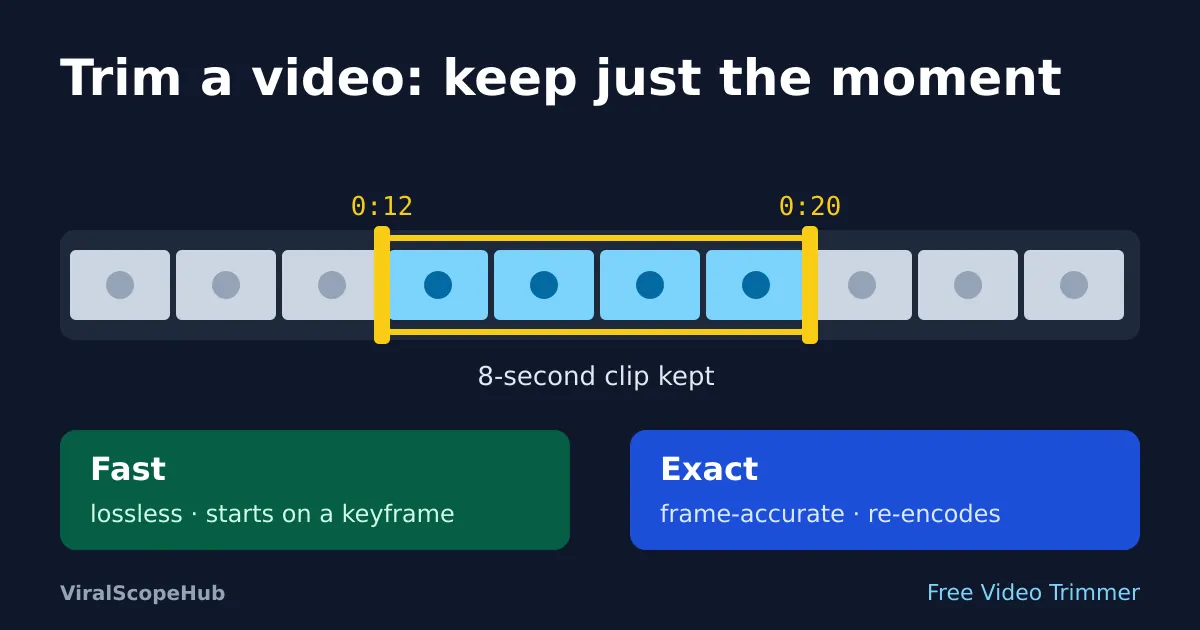
To trim a video, choose the start and end time of the part you want to keep and save just that section. A "fast" trim copies the original picture and sound without re-encoding, so it is quick and keeps full quality, but it can only start on a keyframe, which may be a second or two before the point you picked. An "exact" trim re-encodes the clip so it starts on the precise frame, at the cost of time and a small quality change. Our free Video Trimmer offers both modes and runs on your own device, so your video is never uploaded.
Trimming is the edit people make most often. You recorded two minutes to capture eight seconds of a goal, a first step or a funny moment, and you want to share only the good part. Almost every phone and computer can do a basic trim, and when yours cannot, a browser tool can. What most guides skip is the one technical detail that explains nearly every "why did my cut start early?" complaint: keyframes. Once you know how they work, you can pick the right kind of cut in a second.
The quick way: trim a video in your browser
- Open the Video Trimmer and choose your video. MP4, MOV, WebM and MKV files work, and the file stays on your device.
- Play the video and pause where your clip should begin. Tap Set start at current position. Then find the end and tap Set end at current position. You can also type the times in seconds, such as
12.5. The clip length updates as you go. - Pick a cutting mode: Fast (original quality, cuts at the nearest keyframe) or Exact (frame-accurate, re-encodes, slower).
- Press Trim video, watch the result, then download it. The file name gets a
-trimmedending so you do not overwrite the original.
The first time you press the button, the page downloads a free, open-source video engine (FFmpeg, about 31 MB) and your browser caches it, so later trims start straight away. Files over 1.5 GB are refused because a browser tab usually cannot hold that much in memory; for those, use a desktop editor or trim on the phone that recorded them.
Fast or exact: what is actually different?
Video files do not store every frame as a full picture. They store a complete image every so often, called a keyframe, and in between they store only what changed. That is why a ten-minute clip fits on your phone at all. It also means you cannot simply start a copied video on any frame you like, because the frames after a cut only make sense if the player has the keyframe before them.
FFmpeg's own documentation describes the trade-off. When you seek in a file, most formats only let the program jump to the closest seek point before your chosen time. If the video is being re-encoded, the extra bit between that point and your start is decoded and thrown away, giving a precise cut. If the streams are being copied, that extra bit is kept.
| Fast (stream copy) | Exact (re-encode) | |
|---|---|---|
| Start point | Nearest keyframe at or before your start, often a second or two early | The exact frame you chose |
| Quality | Identical to the original | Very close, but a new encode (H.264 video, AAC sound) |
| Speed | Seconds, even for long videos | Slower; depends on clip length and your device |
| Output format | Same family as the input (MP4/MOV become MP4, WebM stays WebM, others become MKV) | Always MP4 |
| Best for | Cutting a long recording down to a section | Short clips where timing matters: reactions, punchlines, GIFs |
A simple rule: if a second of extra footage at the start would not bother anyone, use Fast. If the clip must begin on a beat, a word or a jump, use Exact. And because Exact only re-encodes the part you keep, trimming a 10-second clip out of a long file is still reasonably quick.
Working out start and end times
Players show time as minutes and seconds, but trimmers often want plain seconds. Multiply the minutes by 60 and add the seconds: 1:23.5 becomes 83.5 seconds, and 12:05 becomes 725 seconds. For hours, multiply by 3,600. If you are adding up several segments, the time calculator does the sums for you.
A tip that saves a lot of fiddling: set the start a fraction early and the end a fraction late, then tighten. It is far easier to remove a tenth of a second than to discover you clipped the first syllable of someone's sentence.
Trim with what is already on your device
- iPhone and iPad: open the video in Photos, tap Edit and drag the yellow handles at either end of the frame viewer. Apple's iPhone User Guide covers this under trimming video length. You can save it as a new clip so the original stays untouched.
- Android: most phones let you trim in the gallery or in Google Photos by tapping Edit and dragging the handles on the timeline. Menu names vary by phone maker.
- Mac: QuickTime Player has a Trim command in the Edit menu, with yellow handles like the iPhone.
- Windows: Clipchamp, which ships with recent versions of Windows, can split and trim clips on a timeline.
- Command line: if you are comfortable with FFmpeg,
ffmpeg -ss 12 -i input.mp4 -t 8 -c copy clip.mp4makes a fast 8-second copy from 12 seconds in. Drop-c copyto re-encode for an exact start.
The built-in editors are fine for everyday use. A browser trimmer is handy on a shared or work computer where you cannot install anything, on a Chromebook, or when you need to choose between lossless and exact cutting yourself.
Common problems and fixes
- The clip starts early. That is the keyframe effect in Fast mode. Switch to Exact, or set your start a little later.
- The first second is frozen or black in some players. Also a stream-copy side effect with some files. Exact mode fixes it.
- The sound is out of sync. Rare, but it happens with some phone recordings that use a variable frame rate. Re-encoding in Exact mode usually lines them back up.
- The trimmed file is bigger than expected. In Exact mode the new encode may use a different bitrate from your phone. If size matters, run the result through the video compressor; our guide on calculating video file size explains the maths.
- "End time must be after the start time." Check you did not swap the two, or type a start later than the video's length.
Keeping two parts of the same video
A trimmer keeps one continuous section. To keep two separate moments, trim twice: once for each part, saving both files. If you want them joined into one video, use a full editor such as Clipchamp, iMovie or your phone's editor to place them back to back.
What to do after trimming
Trim first, then do everything else, because every later step is faster on a shorter clip. Common next steps are making a looping GIF from the clip, slowing a highlight down (see how to make a slow-motion video), or reshaping it for vertical feeds with our guide to resizing video for Reels and Shorts.
VSH take: For most people, Fast mode is the one to reach for: it is honest, lossless and quick, and a second of extra lead-in rarely matters. Save Exact for short clips where timing is the whole point. Whatever tool you use, keep the original file until you have watched the trimmed version all the way through. Only edit videos you made or have permission to use, and ask before sharing clips of other people, especially children. Taking a break from editing? Our free games are a click away, students can find help on the study pages, and if you are travelling to film something special, compare fares on the flights hub.
ViralScopeHub is independent and not affiliated with Apple, Google, Microsoft, the FFmpeg project or any app mentioned here. Menu names can change between software versions. We are not responsible for lost or damaged files, so always keep a copy of your original video.
Frequently asked questions
How do I trim a video without losing quality?
Use a trim that copies the streams instead of re-encoding them. In our Video Trimmer that is Fast mode: the picture and sound are copied exactly, so quality is identical to the original. The only catch is that the cut starts on the nearest keyframe.
Why does my trimmed video start a second early?
Fast, lossless trims can only start on a keyframe, which may be a little before the time you chose. Use Exact mode, which re-encodes the clip, to start on the precise frame.
Is my video uploaded when I trim it online?
Not with our trimmer. The video engine runs inside your browser, so the file is processed on your device and never sent to a server.
Can I trim a video on my phone without an app?
Yes. iPhones trim in the Photos app, most Android phones trim in the gallery or Google Photos, and our Video Trimmer also works in a phone browser.
How do I cut out the middle of a video?
A trimmer keeps one continuous section. Trim the part before and the part after as two clips, then join them in an editor such as Clipchamp, iMovie or your phone's built-in editor.