How to Blur a Face, Number Plate or Address in a Video (Free, No Upload)
Short answer
To blur a face or a number plate in a video, draw a box over it, pick Blur, Pixelate or Solid box, and export a new copy. For anything truly sensitive (an address, a document, a child's face) use a solid box, because it leaves nothing behind. Our free Blur Part of a Video tool does this inside your browser, so the clip you are trying to keep private is never uploaded.
Most of the videos we share are harmless, until you look at the background. A school concert clip shows other people's children. A driveway video shows your car's number plate and the house number above the door. A dashcam clip has a stranger's face in the corner, and an old camcorder tape has the date burned into the bottom of every frame. None of these need a video editor or a subscription. You need one box, the right setting and about two minutes.
Step by step: hide one area of a video
- Open the tool. Go to Blur Part of a Video and choose your clip. MP4, MOV (the iPhone default), WebM and MKV all work.
- Draw the box. A sample box appears in the top-right corner. Drag on the video to draw your own box over the face, plate, address or date stamp.
- Scrub through the clip. Use the slider under the video to jump to the start, middle and end. The box stays in the same place for the whole video, so make sure the thing you are hiding never slips out of it.
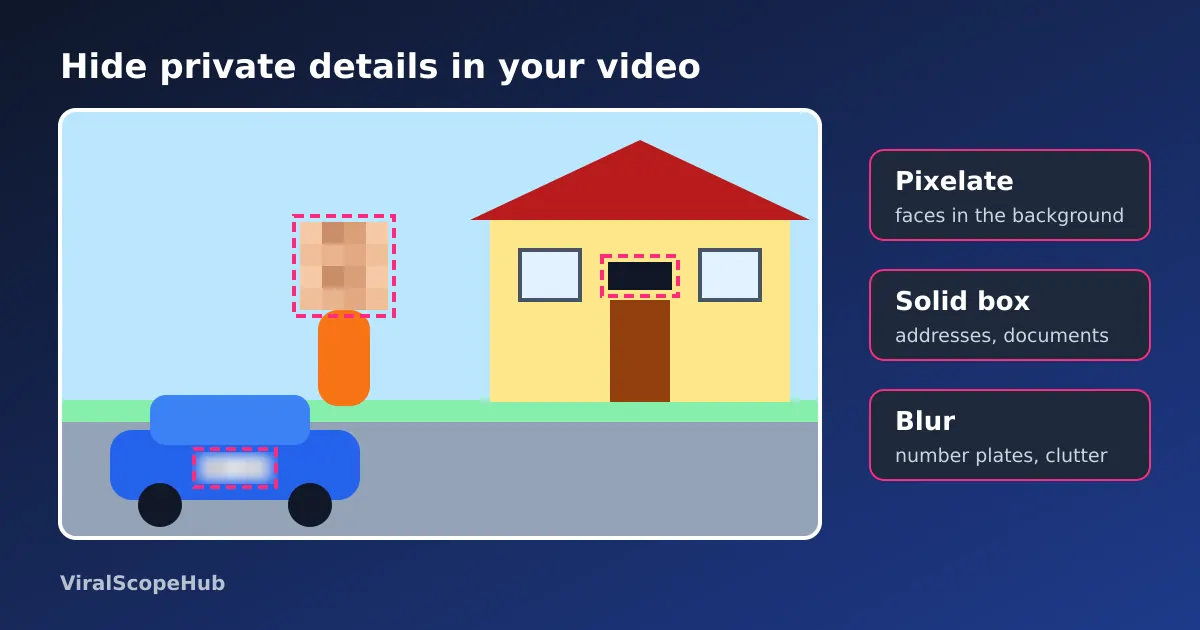
- Pick how to hide it. Blur softens the area, Pixelate turns it into big squares, Solid box covers it with a flat colour, and Crop keeps only what is inside the box.
- Apply and check. Press Apply, play the result all the way through, then download the MP4. Your original sound is kept, and the original file on your device is not changed.
The work happens on your device. The first time, your browser downloads a free open-source video engine (FFmpeg, about 31 MB) and caches it; after that, nothing about your video leaves your phone or computer. That matters here more than for any other edit: it makes little sense to upload a video to a stranger's server in order to protect the people in it.
Blur, pixelate or solid box: which actually hides it?
They look different, and they are not equally safe.
- Solid box replaces every pixel in the area with one colour. Nothing of the original is left in the file, so there is nothing to recover. Use it for addresses, documents, screens, name badges and any face that must not be recognised.
- Pixelate averages the area into blocks. In our tool, the strength number is the size of each block in pixels (4 to 40). Bigger blocks hide more.
- Blur smears the area. It looks the softest and most "professional", which is why TV uses it, but a weak blur can leave a face recognisable to someone who knows the person.
- Crop is different: it throws away everything outside the box. It is the cleanest way to remove a date stamp or a messy edge, because you simply keep the clean part of the picture.
Why not always blur? Because blur and pixelation are not encryption. In 2016, researchers from Cornell Tech and the University of Texas at Austin showed that standard machine-learning models could often identify faces and handwritten digits that had been pixelated or blurred, well above chance (their paper is linked below). Since then, tools that try to "unpixelate" text have appeared too. A blurred background face in a holiday video is fine. A blurred bank statement on the kitchen table is not; cover it with a box.
How strong is strong enough? A quick calculation
Pixelation hides a face when the face is only a handful of blocks wide. A useful rule of thumb from our own testing: aim for no more than about six blocks across a face. So the block size you need is roughly the face width divided by six:
| Face width in the video | Blocks at strength 20 | Strength for ~6 blocks |
|---|---|---|
| 120 px (person across the room, 1080p) | 6 | 20 is enough |
| 200 px (person a few metres away) | 10 | about 34 |
| 240 px or more (close-up) | 12+ | 40, or use a solid box |
You can estimate face width without measuring anything: in a 1080p landscape video the frame is 1,920 pixels wide, so a face that takes up about a tenth of the width is about 190 pixels. Close-ups are where pixelation fails, and where a solid box (or a different clip) is the honest answer. The same logic applies to blur: the tool's blur radius cannot be more than half the smaller side of your box, so a tiny box around a big face gets a weaker blur than you might expect. Draw the box a little larger than the face and the result is both safer and smoother.
When the person moves
Our tool keeps the box in one position for the whole clip. It does not track a moving face. That is a deliberate trade-off for a free, private, on-device tool, and there are two simple ways around it:
- Draw a bigger box that covers the whole path. Scrub through the video first and note where the face goes; a box covering that area works for most short clips, such as someone walking past a doorway.
- Cut the clip into parts. Use the Video Trimmer to split it where the person moves, blur each part with its own box, and keep the parts you need.
If you post on YouTube, YouTube Studio's editor also has a face blur with tracking and a custom blur you can set to follow an object; it works on videos already uploaded to your channel. For a clip you want to send in a family chat or post somewhere else, a fixed box on your own device is often quicker.
What to look for before you post
Privacy leaks usually hide in the details, not the main subject. Before sharing, watch your clip once looking only at the background and check for:
- Car number plates, including your own on the driveway.
- House numbers, street signs and anything that shows where you live.
- School logos and uniforms, name badges and lanyards.
- Screens and paper: laptops, phones, letters, prescriptions, tickets with barcodes.
- Other people's children. Many schools and clubs ask parents not to post other families' kids at all; blurring is a good habit even when nobody asks.
- Date stamps from old cameras, which can reveal birthdays and ages.
Video is not the only leak. Photos you share alongside a video can carry GPS coordinates in hidden EXIF data; strip them with the EXIF Remover (our guide to removing location from photos explains how), and hide faces in still pictures with Face Blur.
Common mistakes
- Box too small. Faces turn and lean. Leave a margin of about a quarter of the face size on every side.
- Checking only the first frame. Always scrub to the end; the person who was in the corner at the start may be in the middle by the end.
- Posting the original by mistake. The tool saves a new file with "-blurred" in its name. Delete or rename the original in your share sheet so you do not pick the wrong one.
- Blurring someone else's watermark or logo. This tool is for privacy in videos you made or may edit. Covering another creator's mark to repost their video breaks most platforms' rules and can break copyright law. To protect your own clips instead, add your mark with Add Watermark to Video.
VSH take
We would pick a solid box more often than most people do. It looks a little blunt, but it is the only option that is safe no matter what software comes next, and viewers understand it immediately. Save blur and pixelate for things that are merely distracting, such as a stranger walking behind you or a messy shelf. And if a clip needs five different boxes to be safe, that is usually a sign to share a different clip. Once your video is clean, make it fit the app with our Resize Video for Reels tool, or turn the best moment into a GIF.
The pixelation "six blocks" rule is our own guideline, not an official standard, and no method can guarantee that a person is unidentifiable from clothing, voice or context. YouTube Studio features are described from YouTube Help as of October 2026. ViralScopeHub is not affiliated with YouTube or Google.
Frequently asked questions
How do I blur a face in a video for free?
Open our Blur Part of a Video tool, choose the clip, drag a box over the face, pick Blur, Pixelate or Solid box and press Apply. It runs in your browser with no sign-up, no watermark and no upload.
Is blurring or pixelating enough to hide someone?
For background faces it is usually fine at a high strength. For anything sensitive, use a solid box: research has shown that software can sometimes recognise blurred or pixelated faces, while a solid box leaves nothing of the original.
Can the blur follow a person who moves?
Not in our tool; the box stays in one place. Draw a box that covers the whole path, or split the clip with the Video Trimmer and blur each part separately. YouTube Studio offers tracking blur for videos already on your channel.
How do I remove the date stamp from an old video?
Choose Crop instead of Blur and draw the box around the part of the picture you want to keep, leaving the date stamp outside it.
Is my video uploaded anywhere?
No. The video is processed by your own browser, and the free FFmpeg engine is downloaded once and cached. Your clip never reaches our server.